|
MyGaDOE |
Version 1.0 |
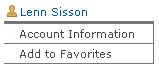
The Add to Favorites link (shown in the image below), allows users to link directly to Web sites and other links of importance to them. To add a link to your favorites, complete the following steps:
The Personal section of the Navigation menu, showing the Add to Favorites link
From any page in MyGaDOE, click the Add to Favorites link in the Personal section of the Navigation menu. The Add to Favorites page displays, as shown below.
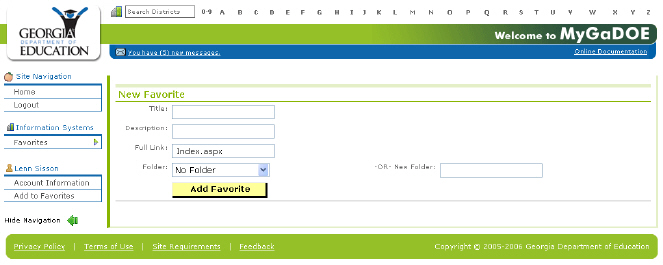
The Add to Favorites page
In the Title field, enter a title for site or item you want to add to favorites,
Enter a description in the Description field.
In the Full Link field, enter the complete link to the item.
Select a folder from the Folder dropdown box, in which to locate the item, or enter the name of a new folder in the New Folder field.
When finished, click the Add Favorite button. The new item is added to your Favorites in the folder specified, the screen refreshes to show a list of your favorites with the new link added, as shown below.
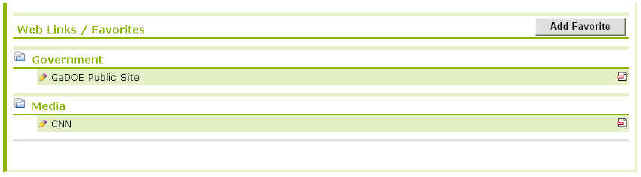
The Web Links /Favorites list displays after a new link is added
This completes the Add to Favorites task. To add another favorite, click on the Add Favorite button near the upper right corner of the page, or click a link in the Navigation menu to perform another task.