|
MyGaDOE |
Version 1.0 |
Authorized users can add alerts to MyGaDOE. To do this, complete the following steps:
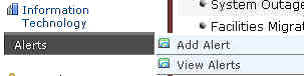
On your Home page, place your mouse over the Alerts option in the Navigation menu along the left side of the page. The menu displays.
The Alerts menu, showing alert options as they display when users place their cursor over the Alert option
Click the Add Alert option. The Add alert page displays, as shown below.
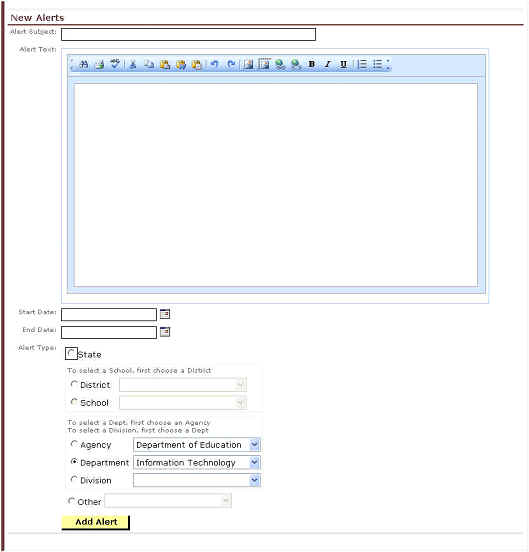
The Add Alerts page as it first displays
Enter the subject of the alert in the Alert Subject field.
Enter the text of the alert in the Alert Text field.
Enter the
date on which the alert is to first appear in the Start Date field, or
select it from a calendar by clicking on the Date icon (  ).
).
Enter the
date on which the alert is removed from view in the End Date field, or
select it from a calendar by clicking on the Date icon ( ).
Select the type of alert by selecting one of the radio button options in the Alert Type area. The options are State, District, School, Agency, Department, Division, and Other. If any option other than State is selected, the alert creator must select a specified entity from the appropriate dropdown box. For example, if District is selected, you must specify the exact district to which the alert applies. This prevents users in one district from being confused or overwhelmed by alerts from other districts.
Click the Add Alert button. The alert is added. This completes the Add Alerts process.