|
MyGaDOE |
Version 1.0 |
To answer a Data Wizard Survey, complete the following steps:
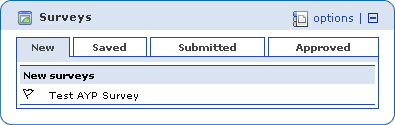
Locate the Survey portlet and see if it contains a survey that needs answering. If you have a survey to answer, it will display in the Surveys portlet, as shown below.
The Surveys portlet, showing one available survey
Click the name of the survey you want to answer. The Survey page displays, as shown in the example, below.
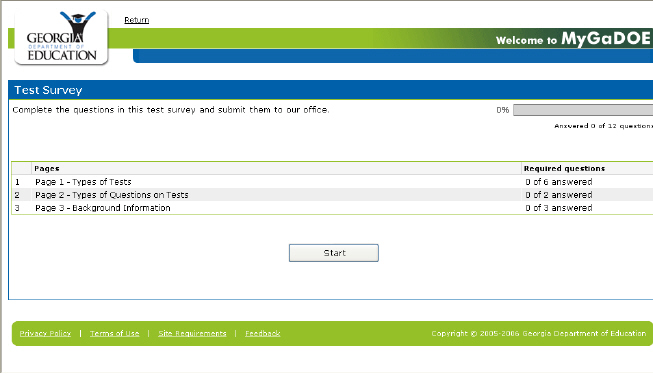
The Survey page, showing a sample survey ready to answer
The following parts of the Survey page are important to know:
Basic Instructions for the survey appear near the top of the page, just below the blue Utility menu that contains the survey name.
The Percentage Answered bar, located to the right of the Instructions tells the user what percentage of the survey he or she has completed. Just below it, there is a text message describing how many questions out of the total number of questions in the survey have been answered. In the example, above, the user has "Answered 0 of 7 questions".
The Pages list, located below the instructions, lists each page in the survey. Pages are the primary divisions of a Data Wizard survey. Pages are divided into sections, which contain questions and choices (possible answers).
The Required Questions list, located to the right of the Pages list, provides users with the number of required questions per page. Obviously, required questions must be answered before the survey can be submitted. In the example, above, there are no required questions.
The history section, located near the bottom of the page, provide a list of the comments the user has made for this survey. Since the survey in the example above has not yet been started, there are no comments.
The "Start" button, located near the middle of the page, between the Pages and History lists, starts the survey when the user clicks it.
Click the Start button to start answering questions. The questions display for the first section of the first page of the survey, as shown below.

A sample question page
Answer
the questions. Click
the "Next" icon ( ) to see the next set of questions.
Click the
"Save this page" button to save the
answers to questions you have already answered and then exit the survey.
If you
do this, you can finish the survey later. If
you click the "Next" icon (), the next set of
questions for the survey display.
) to see the next set of questions.
Click the
"Save this page" button to save the
answers to questions you have already answered and then exit the survey.
If you
do this, you can finish the survey later. If
you click the "Next" icon (), the next set of
questions for the survey display.
Continue working through the questions. At the top and bottom of each set a tool bar displays, as shown below. Remember, you can save the survey and return to it at a later time.

Tool bar as it displays at the beginning of a survey
To navigate
to a specific page within the survey, click on the Page dropdown box,
located to the left of the "Next" icon (). The
box displays, as shown below.
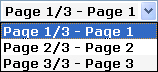
The Page dropdown box allows users to go directly to a specific page within the survey
Click the page you want to go to. The page displays.
When you have reached the last set of questions, the following options display in the tool bar:

The Data Wizard tool bar as it displays when the survey is completed
After finishing
the last question, click the "Save & Exit" icon ( ) to save the survey and return to finish it later, or the
"Finish" icon (
) to save the survey and return to finish it later, or the
"Finish" icon ( ) to complete the survey and go
to the Survey Submission page, an example of which is shown, below.
) to complete the survey and go
to the Survey Submission page, an example of which is shown, below.
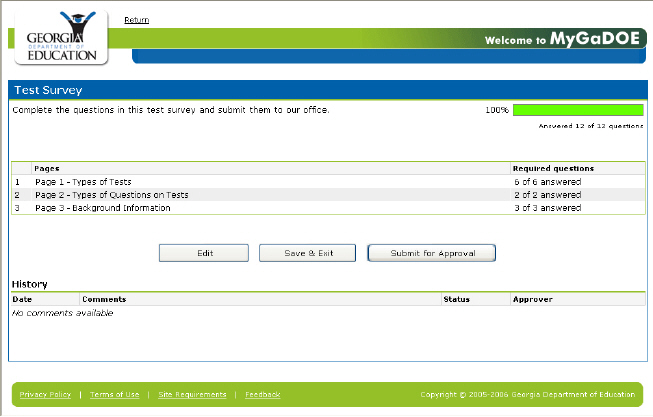
An example of a Survey Submission page
You can click on the page names to display the questions for those pages, Click the "Save and Exit" button to save the survey and exit the application without submitting the survey, or the "Submit for approval" button to submit the survey. If you click the "Submit for approval" button, the survey is submitted. If the survey has been completed properly, then the Confirmation page displays, as shown below.
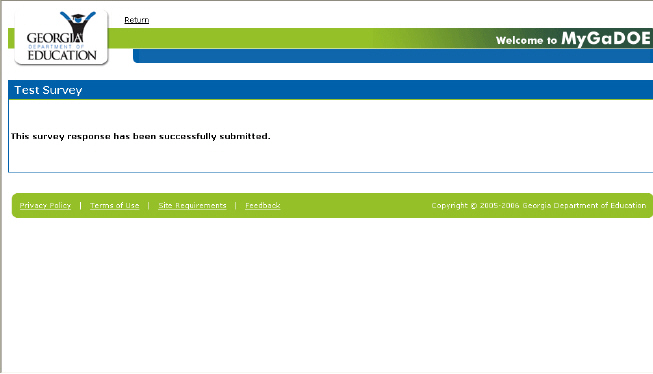
The Submission Confirmation page
This completes the process of answering a survey.