|
MyGaDOE |
Version 1.0 |
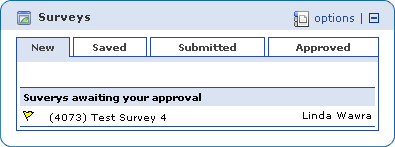
The person who creates a survey can designate that the responses to that survey must be approved before being added to the finished data set. To do this, the survey creator specifies an approver for the survey. When the survey is completed by a respondent, a message displays in the Surveys portlet (as shown below) stating that a survey is ready for approval.
The Surveys portlet showing a new survey needing approval
To approve a survey, complete the following steps:
From the Surveys portlet on the Home page, click the flag to the left of the survey title. The Approve Survey page displays, as shown below.
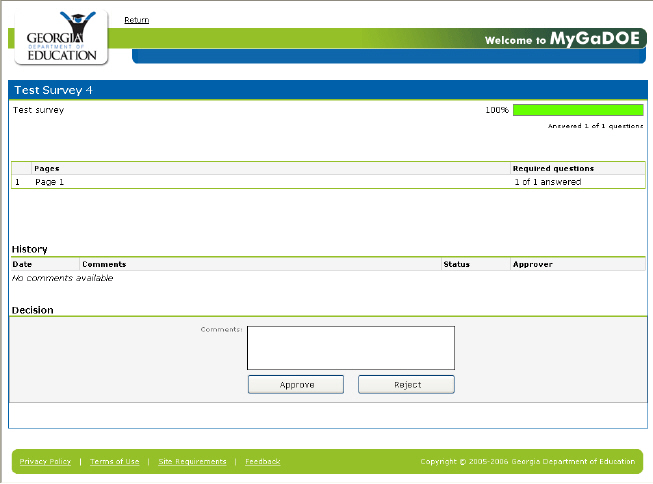
The Approve survey page
Review each question by clicking on each Page and Section to show the questions and answers for that page and section.
Note: Approvers cannot change the answers to questions. They can only approve or reject a survey and include comments. If the respondent has not answered one or more questions correctly, reject the survey and note in the comments the specific issues that must be addressed.
When finished reviewing, Enter appropriate comments in the Comments field.
Click the Approve button to approve the survey or the Reject button to reject it. If approved, the data along with any comments will be added to the data set of completed surveys. If rejected, the survey will be returned to the respondent along with any comments.
This completes the Approve Survey process.