
|
MyGaDOE |
Version 1.0 |
To edit a Data Wizard Page, complete the following steps:
From anywhere in MyGaDOE, click the Data Wizard Editor option in the Navigation menu. The Data Wizard Main page displays, as shown below.
Data Wizard Editor Main page
Click the
Go To icon ( ) to the right of the Data Wizard that contains
the page you want to edit. The
Pages screen displays, as shown below.
) to the right of the Data Wizard that contains
the page you want to edit. The
Pages screen displays, as shown below.
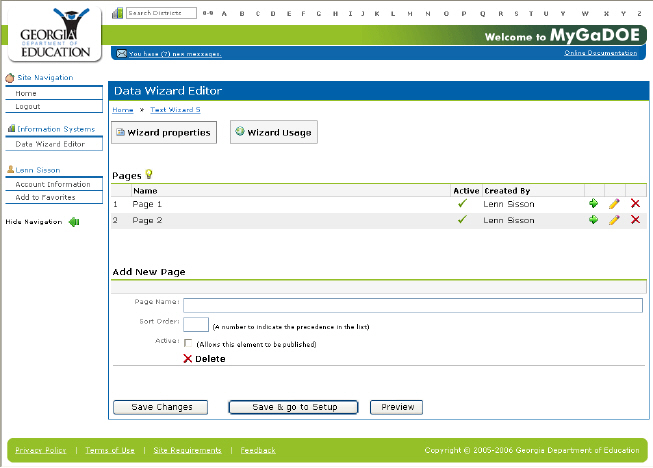
The Data Wizard Pages screen
Click the
Edit icon ( ) to the right of the page you want to edit. The
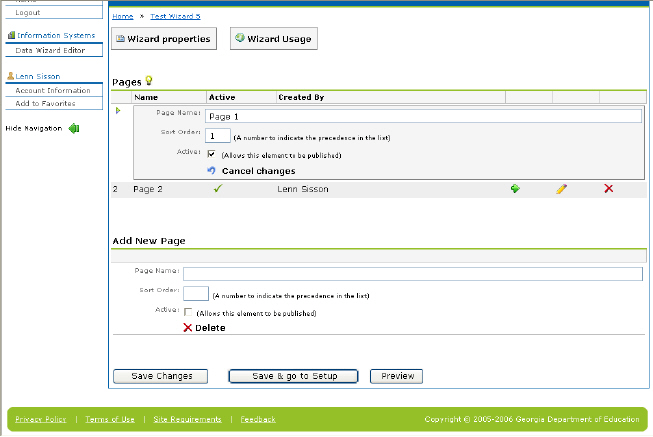
Edit Page screen displays, as shown below.
) to the right of the page you want to edit. The
Edit Page screen displays, as shown below.
 T
T
The Data Wizard Edit Page screen
Make whatever changes are required to the page.
When finished, click the Save Changes button to save the changes and remain in the Edit Page screen, the Save & go to Setup button to save the changes and go to the Setup page, or the Preview button to preview the changes without saving them.
Warning: If you choose to Preview the Changes before you save them, make sure you save the changes before exiting the screen. Otherwise, you will lose whatever changes you made.
This completes the process for editing a Data Wizard Page.