
|
MyGaDOE |
Version 1.0 |
Once a user creates a Data Wizard questionnaire, he or she must set it up for distribution. To do this, complete the following steps:
When you have completed creating all questions and inserting possible answers (choices) in them, the "Save & go to Setup" button displays. Click that button. The Setup page displays, as shown below.
The Data Wizard Setup page
Select the delivery method from the Delivery Method radio buttons.
Note: Selecting the Public Site radio button will make the survey available to everyone who visits the GaDOE public Web site.
Select whether the user can submit a single response or multiple responses by clicking on the Single submission or Multiple Submissions radio button.
Click the "Manage Security" button. The Access Groups and New Groups sections display, as shown below.
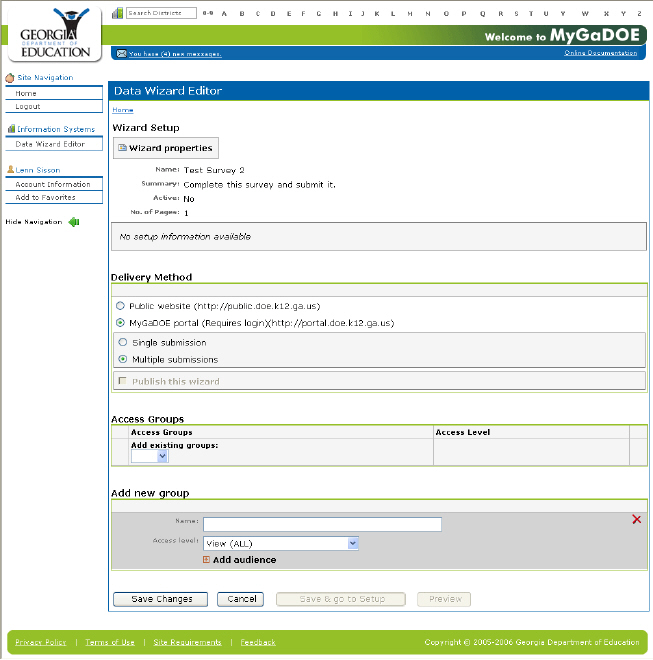
The Setup page showing the Access Groups and New Groups sections
If the group that you want to have access to your survey already exists, click the "Add existing groups" dropdown box, and select the group from it.
If the group that you want to have access to your survey does not already exists, you must create one. To do so, click inside the "Name" text box and enter the name of the new group.
Click the "Access levels" dropdown box and select the level of access, as shown below. View (ALL) allows users to view and answer the survey. The other options are self-explanatory.
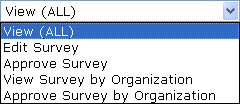
The Access levels dropdown box
Click the "Add audience" link. The group is added to the list of groups. It now should be in the "Add existing groups" list.
Click on the "Add existing groups" dropdown box, and select the new group from the list.
Click the Save Changes button. The changes are saved and the survey will appear to the selected group in their the New Surveys tab of their Surveys portlet.
This completes the Setup Data Wizard for Distribution process.