|
MyGaDOE |
Version 1.0 |
Users can view surveys that have been submitted, though they cannot change them. To view a submitted survey, complete the following steps:
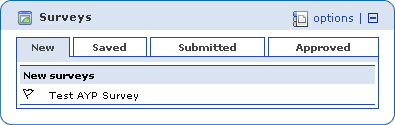
From your MyGaDOE Home page, locate the Survey portlet, an example of which is shown below.
An example of the Surveys portlet, showing one available survey in the New tab
Click the Submitted tab. The Submitted tab displays, similar to the one shown below.

An example of the Submitted tab in the Survey portlet
Click the survey you want to view. The start page for that survey displays, similar to the one shown in the example below.

An example of the Submitted Survey page, showing a survey and the answers associated with it
You can view the survey and the answers. You can also print the survey and answers. When finished, click the Return link at the top of the page to return to your Home page.
This completes the View Submitted Survey process.