|
MyGaDOE |
Version 1.0 |
To download district assessments, please complete the following steps:
Note: District Assessment files are archived using WinZip software, which means that, after downloading, users will need the WinZip application in order to extract the assessment files from the archive.
Note: Many of the District Assessment files are in Adobe Acrobat (PDF) format. If you do not have the free Adobe Acrobat reader, please go to www.adobe.com and download it.
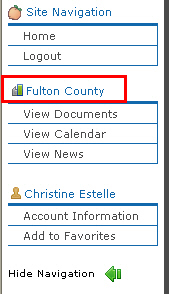
From anywhere in MyGaDOE, locate the Navigation menu along the left side of the screen, and click the name of the county with which you are associated. In the image below, this is highlighted by a box.
The Navigation menu, showing the county highlighted by a box
Locate the Assessments Portlet in the main part of your screen. It looks similar to the image, below.
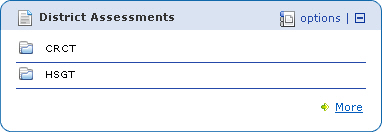
The District Assessments portlet
Click the name of the assessment you want to download. The options in the example in the image, above, are CRCT and HSGT. The assessment expands, as shown below.
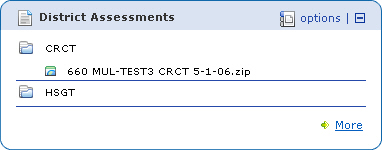
A District Assessment portlet, expanded to show the available assessments
Click the Assessment you want to download. The Download dialog box displays, as shown below.
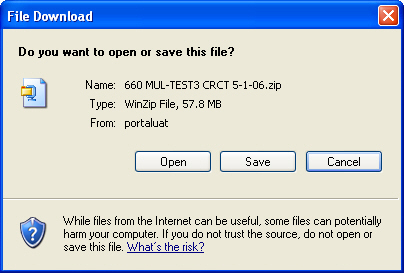
The Download dialog box
Click the Save button. The Save As dialog box displays, as shown below.
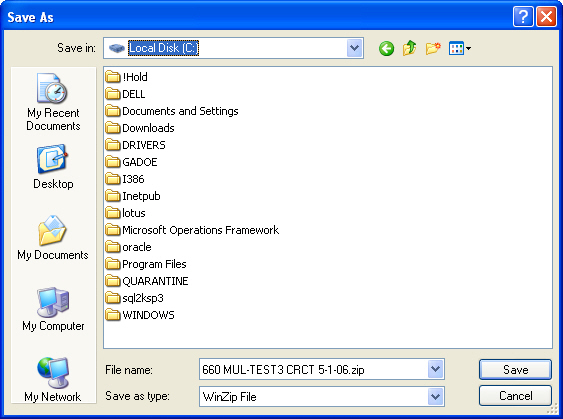
The Save As dialog box
Use the "Save in" dropdown box to navigate to the location where you want to save the PDF file. The location displays in the "Save in" dropdown box.
Click the Save button. The file downloads to the specified location.
Note: Assessment Files can be very large. Downloading them through a dial-up connection may require considerable time.
This completes the Download District Assessments process.