|
MyGaDOE |
Version 1.0 |
Only MyGaDOE Content Managers and Administrators may add documents to the MyGaDOE Document Management system. Adding a document to the system is a four-step process, as follows:
Choose file and storage type.
Select categories.
Select document type.
Review and upload.
To add a document to the MyGaDOE Document Management system, complete the following steps:
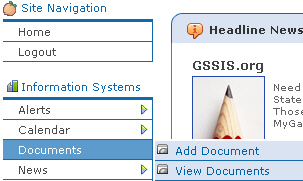
From anywhere in MyGaDOE, hover above the Documents option in the Navigation menu. the Documents flyout menu displays, as shown below.
The Documents flyout menu, showing available options
Click the Add Document button. The Upload File Wizard displays, as shown below.
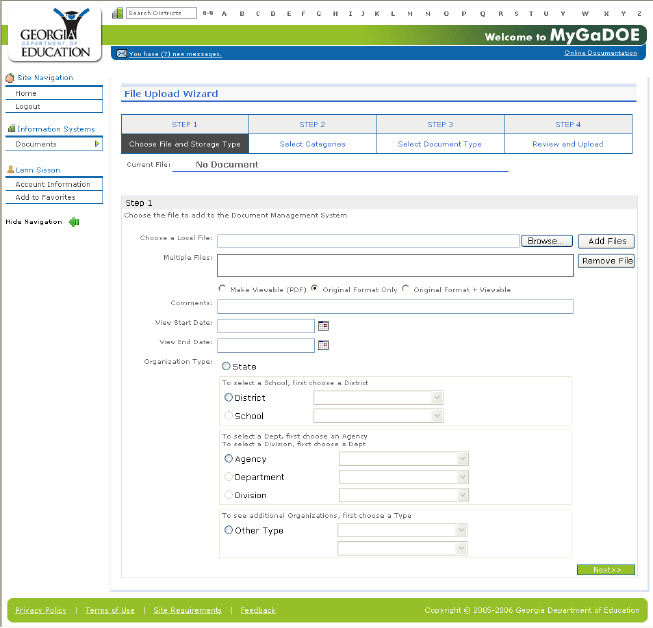
The File Upload page
Click the Browse button to select the file you want to upload.
Click the Next button to go to Step 2 — Select Categories. The Select Categories page displays, as shown below.
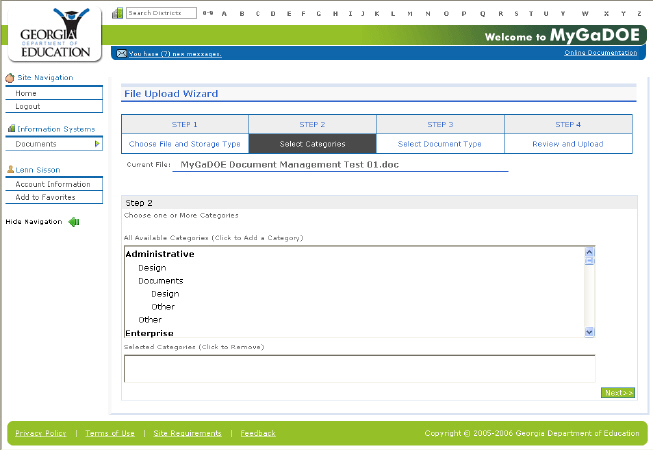
Step 2 of the File Upload Wizard
Select the category or categories under which the file is to be stored by clicking on the appropriate category names in the All Available Categories field. The chosen categories display in the Selected Categories field.
Note: To remove a category, click on it in the Selected Categories field. The category is deleted from the Selected Category field.
Click the Next button to go to Step 3 — Select Document Type. The Select Document Type page displays, as shown below.
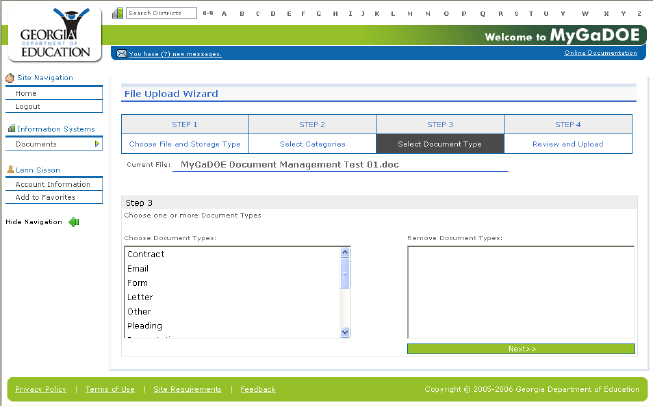
Step 3 of the File Upload Wizard
Select one or more document types for the document to be added by clicking on the appropriate option or options in the Choose Document Types field. the selected types display in the Remove Document Types field.
Note: To remove a document type from the Remove Document Types field, click on the field you want to remove. It is removed from the field.
Click the Next button to go to Step 4 — Review and Upload. The Review and Upload page displays, as shown below.
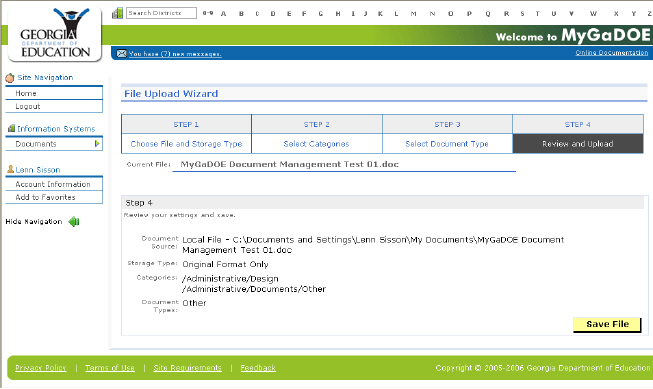
Step 4 of the File Upload Wizard
Review the information. To return to a specific step to make changes, click on the appropriate step in the Step Table, located above the Current File field, near the top of the page.
When finished making changes, click Step 4 in the Step Table to return to the Review and Upload page.
Click the Save File button. The file is added to the MyGaDOE Document Management system.
This completes the MyGaDOE Document Management Add a Document process.