|
MyGaDOE |
Version 1.0 |
To view a document, complete the following steps:
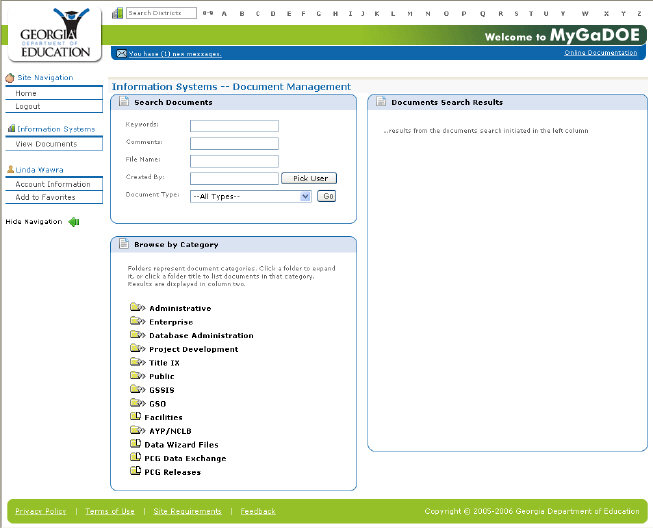
From anywhere in MyGaDOE, click the View Documents option in the Navigation menu. The Document Management flyout menu displays, as shown below.
An example of the Document Management Main page
Users may either browse files by category, or search for specific files by keyword, comments, file name, who created the document, and/or document type.
To browse by category, click on the folder to the left of the appropriate category in the Browse by Category section. The category expands to show sub-categories. Files will be stored in the lowest sub-category.
To search for a specific file, enter search information into the appropriate fields in the Search Documents section, then click the Go button. The search results populate the Documents Search Results section, as shown below. Below that is an example of a record, showing the document title, the document creator, the date and time it was added or last updated, the icon for the document type (in this case, a PDF file), and the icon for copying the document's URL.
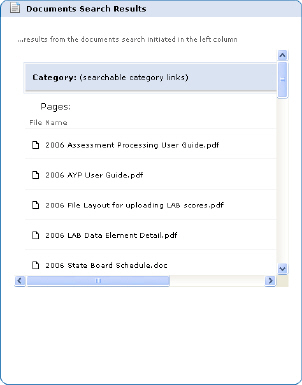
An example search results list

An example search result record
To view the details of the record, click the record name. The record details display, as shown below.
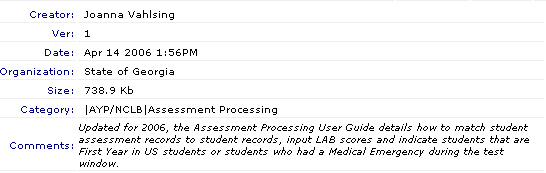
An example of record detail information
To download
the file, click the download icon ( ) to the right of the
record. the
File Download dialog box displays, as shown below.
) to the right of the
record. the
File Download dialog box displays, as shown below.

The File Download dialog box
Click the Open button to open the file. Windows launches the appropriate application and displays the document.
Note: You cannot view a document for which your computer does not have the application. For example, if the document you want to view is a Microsoft Word file and your computer does not have Microsoft Word on it, you cannot view the file.
Click the Save button to save the file. The Save As dialog box displays, as shown below.
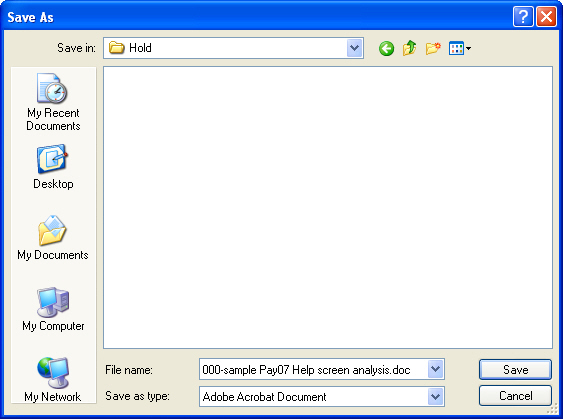
The Save As dialog box
Use the Save in field to select the folder in which to save the document.
Click the Save button. The document is saved.
This completes the View/Save process.