
|
MyGaDOE |
Version 1.0 |
The Add Job Openings page is used to add a new Employment Opportunity item to the list of job openings that appear in the GaDOE public Web site.
To add a job opening, complete the following steps:
From any page in MyGaDOE, place your mouse above the Jobs option in the Navigation menu. The Jobs flyout menu displays, as shown below.
The Jobs flyout menu, showing both the View Jobs option and the Add Jobs option
Click the Add Jobs option. The New Employment Opportunities page displays, as shown below.
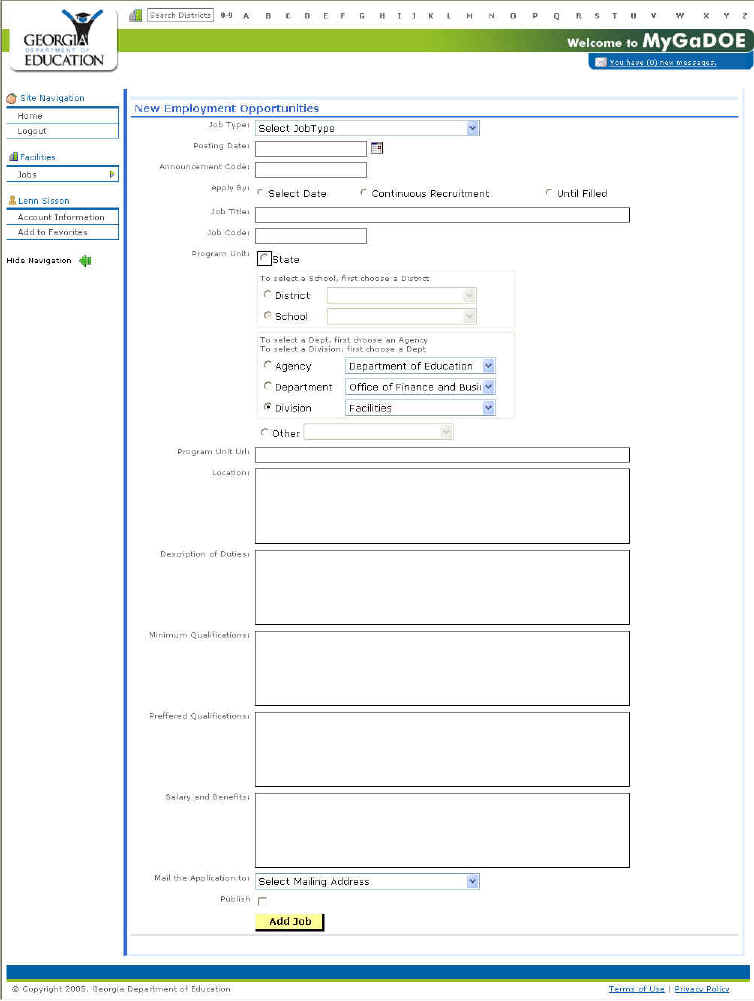
The New Employment Opportunities page
Select the job type from the Job Type dropdown box.
Enter the
date the job is to be posted in the Posting Date field, or select it by
clicking on the calendar icon ( ) and choosing it from the
calendar that displays.
) and choosing it from the
calendar that displays.
Enter the announcement code in the Announcement Code text box.
Select how to apply the job posting (by selected date, for continuous recruitment, or until the job is filled) by clicking on the appropriate Apply By radio button.
Enter the job title in the Job Title text box.
Enter the job code in the Job Code text box.
Select the appropriate program unit by clicking on the correct Program Unit radio button and (if applicable) selecting the appropriate district, school, or agency information from the appropriate dropdown box(s).
Enter the program unit Web page in the Program Unit URL text box.
Enter the location of the job in the Location text box.
Enter a description of the job's duties in the Description of Duties text box.
Enter the minimum qualifications for job applicants in the Minimum Qualifications text box.
Enter the qualifications that are preferred for job applicants in the Preferred Qualifications text box.
Enter salary and benefit information for the job in the Salary and Benefits text box.
Choose the address to which applicants should mail their resumes by selecting it from the "Mail the Application to" text box.
If the job posting is to appear on the Web site immediately, then click the Publish check box to mark it.
Warning: The job posting will be visible to applicants as soon as the Publish check box is marked and the Add Job button selected. So, make sure that you want to publish the job to the GaDOE public Web site before clicking the Publish Check box.
Click the Add Job button to add the job to MyGaDOE and (if the Published check box is marked) publish it to the GaDOE public Web site. Users are returned to the Employment Opportunities page which lists all the job postings to which the user has access.
This completes the Add Job Openings process.