|
MyGaDOE |
Version 1.0 |
To change passwords, complete the following steps:
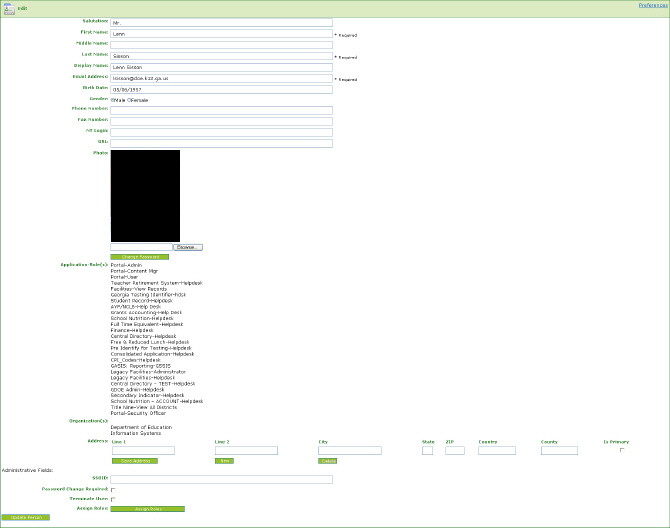
From any page in MyGaDOE, click your user name in the Navigation menu. The Edit Account Information page displays, as shown below.
A sample View Account Information page (Note the Change Password button about halfway down the page)
Click the Change Password button, located about halfway down the page. The Change Password page displays, as shown below.
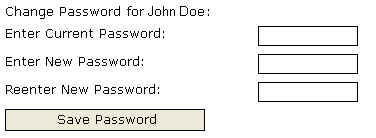
The Change Password page
Enter your current password in the Current Password field.
Enter your new password in the Enter New Password field.
Enter your new password again in the Reenter New Password field.
Click the Save Password button. MyGaDOE verifies that the passwords entered in the Enter New Password and Reenter New Password fields match. If not, it shows an error message and asks that you redo the process. If the passwords match, MyGaDOE changes the password and the process is complete.