|
MyGaDOE |
Version 1.0 |
To view a News item, complete the following steps:
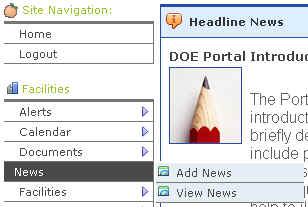
From your MyGaDOE Home page, place your cursor over the News option in the Navigation menu. The News hover menu A menu where placing the cursor over a menu item but not clicking it (literally hovering over it) causes the menu options to display. displays, as shown in the image below.
The News Hover menu, showing both Add News and View News options
Select the View News option. The View News page displays, as shown below.
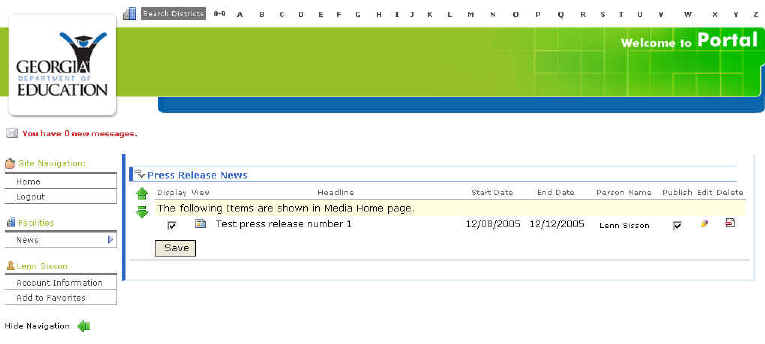
An example of the View News page
Click the
View icon ( ) to the left of the news item headline you want
to view. The
complete news item displays, as shown below.
) to the left of the news item headline you want
to view. The
complete news item displays, as shown below.
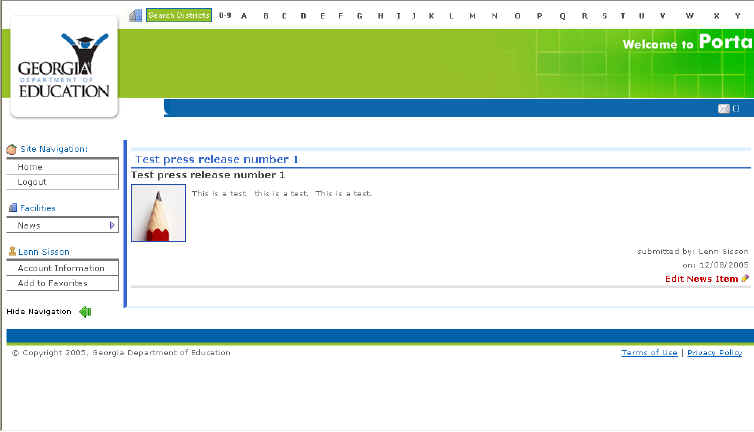
The View News Detail page, showing an example news item as it displays
Users may now view the complete news item.
This completes the View News process.