|
MyGaDOE |
Version 1.0 |
If you are a security officer and you wish to manage user application permissions, complete the following steps:
From any
page in MyGaDOE, hover your mouse over the Search Type icon. This
icon will vary based on the type of search chosen. When
the page first displays it defaults to the district search option (
). In
any event, the icon is located just to the left of the Search text box
(
). The
Search dropdown menu displays, as shown below.
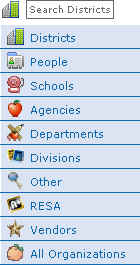
The Search dropdown menu displays when you click the Search icon
Click the
People icon (
). The
Search menu resets to perform a people search, as shown below.

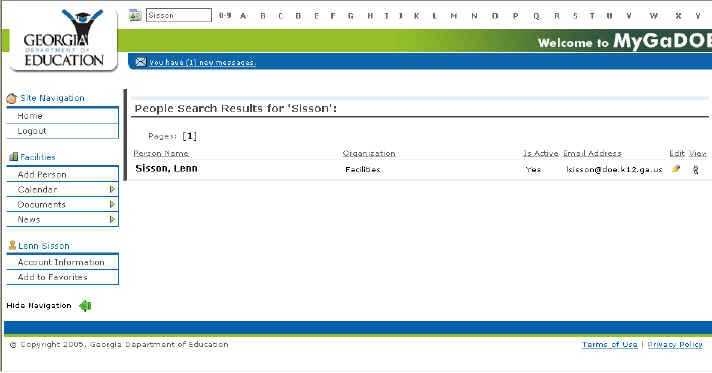
The Search menu reset to search for people instead of districts - note how the icon has changed from the District search icon to the people search icon
Click inside the Search text box to place your cursor there.
Enter the name of the person, you want to find.
Press the Enter button (Return on Macintosh computers). MyGaDOE searches its database and displays the Search Results page, as shown below.

The Search results page
Click the
Edit (
) icon next to the person whose permissions you want
to edit. The
Edit User Permissions page displays, as shown below.
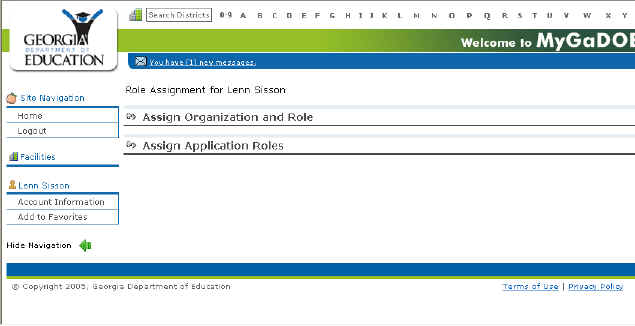
The Edit User Permissions page
Click the Assign Roles button. The Assign Roles page displays, as shown below.
Warning: If you are provisioning someone for the role of Security officer, they must not only be designated as a security officer in organizational roles, but also as a security officer in application roles.

The Assign Roles page is divided into Assign Organizational Roles and Assign Application Roles
Click the
Expand Section (
) icon to the left of the section you
want to modify. The
section will expand, as shown below.
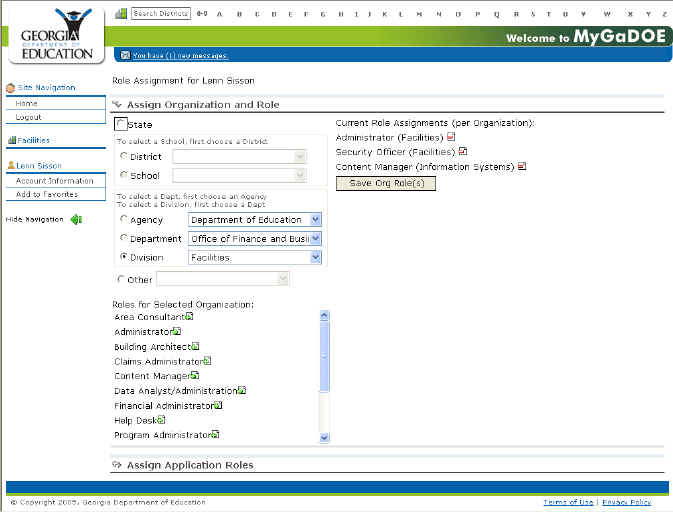
The Assign Organization and Roles page
The column
starting with the State radio button contains the organization selection
section and the list of available roles. The
upper part of the column contains the former and the lower part, while
the lower part contains the latter (populated based on the organization
selected). In
the example above, the list of available roles begins with "Area
Consultant".
To the right of the column containing the organization selection section
is the column containing organization roles that have already been selected.
In the
example above, this column begins with "Administrator (Facilities).
To add
a role, click the Add (
) icon to the right of the role you
want to add. It
displays in the right hand column to show that it has been selected.
To remove
a role, in the selected role column, click the Remove (
)
icon to the right of the role you want to remove. The
item is removed and no longer displays in the list.
Note: The same process holds true for the Assign Application Roles section, except that changes here refer to roles within specific applications rather than roles within the organization.
When finished making changes, Click the "Save Org Role(s)" button to save changes to organizational roles, and the "Save App Role(s)" button to save changes to the application roles.
If business owner approval is required for any of the changes, a message will be sent to the appropriate business owner and a message will be displayed to this effect. Otherwise, the changes will take place the next time the user logs into MyGaDOE.