When a user account is terminated, all organization
and application roles are removed from it and the account is assigned
to an organization titled Terminated Users. To
reactivate the account, a security officer must uncheck the Terminated
User check box, update the account, and assign appropriate organization
and application roles.
Reactivate a User Account
If you are a security officer and you wish to reactivate
a terminated user's account, complete the following steps:
From any
page in MyGaDOE, hover your mouse over the Search Type icon. This
icon will vary based on the type of search chosen. When
the page first displays it defaults to the district search option ( ). In
any event, the icon is located just to the left of the Search text box
(). The
Search dropdown menu displays, as shown below.
The Search dropdown menu displays when you click the
Search icon
Click the
People icon (). The
Search menu resets to perform a people search, as shown below.
The Search menu reset to search for people instead
of districts - note how the icon has changed from the District search
icon to the people search icon
Click inside
the Search text box to place your cursor there.
Enter the
last name of the person, you want to find.
Press the Enter
button (Return on Macintosh computers). MyGaDOE
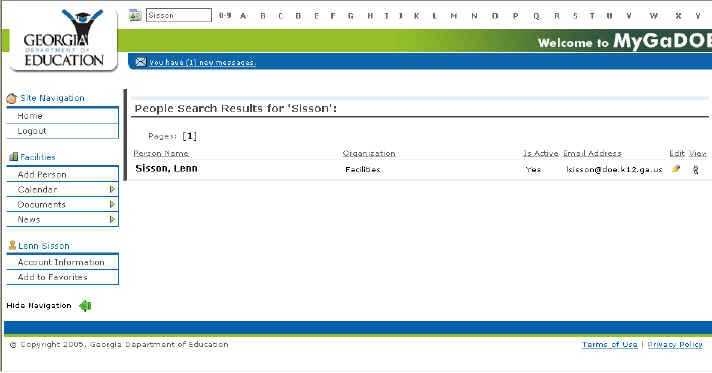
searches its database and displays the Search Results page, as shown below.
The Search results page
Click the
Edit () icon next to the person whose account you want to
reactivate. The
Edit User Permissions page displays, as shown below.
The Edit User Permissions page showing a user marked
terminated (just above the Assign Roles button near the bottom of the
page)
Click the
Terminate User check box so that it is unchecked. This
box is located just above the Assign Roles button.
Click the
Update Person button located at the bottom of the page. The
screen refreshes.
Click the
Assign Roles button. The
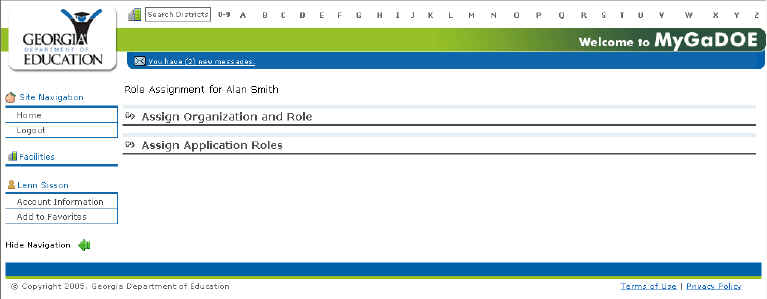
Assign Roles page displays, as shown below.
The Assign Roles page
Click the
Assign Organization and Role section expansion icon ().
The section
expands, as shown below.
The Assign Organization and Role section, expanded
Select
the appropriate organization to which the user belongs. The
"Roles for Selected Organization" options display, as shown
below.
An example of the "Roles for Selected Organization"
options, which displays when you select an organization for a user
Select
the appropriate organizational roles for the user by clicking the Add
Role icon () located next to the role.
Click the
Save Org Role(s) button. The
selected roles are saved and the screen refreshes.
Click the
Assign Application Role section expansion icon (). The
section expands, as shown below.
Warning:
If you
are reactivating someone to the role of Security officer, they must not
only be designated as a security officer in organizational roles, but
also as a security officer in application roles.
The Assign Application Roles section, expanded to show
available options
Click the
Expand Application Role icon (). The
role expands to show available options within that application, as shown
below.
The Assign Application Roles section, expanded to show
available options
Select
the appropriate roles from the appropriate applications.
Click the
Save App Role(s) button. The
selected roles are saved and the screen refreshes.
This completes
the reactivate a terminated user task.
 ). In
any event, the icon is located just to the left of the Search text box
(
). In
any event, the icon is located just to the left of the Search text box
( ). The
Search dropdown menu displays, as shown below.
). The
Search dropdown menu displays, as shown below. 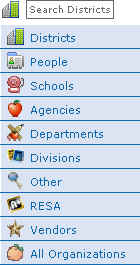
 ). The
Search menu resets to perform a people search, as shown below.
). The
Search menu resets to perform a people search, as shown below.
 ) icon next to the person whose account you want to
reactivate. The
Edit User Permissions page displays, as shown below.
) icon next to the person whose account you want to
reactivate. The
Edit User Permissions page displays, as shown below.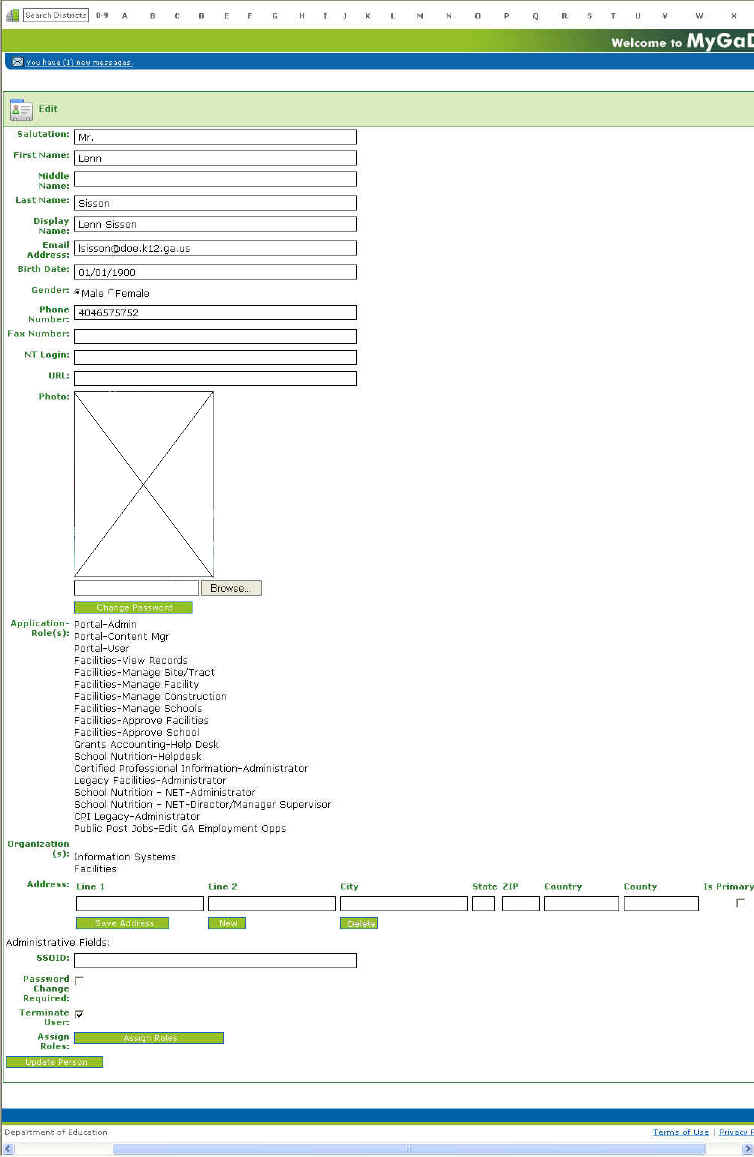
 ).
The section
expands, as shown below.
).
The section
expands, as shown below.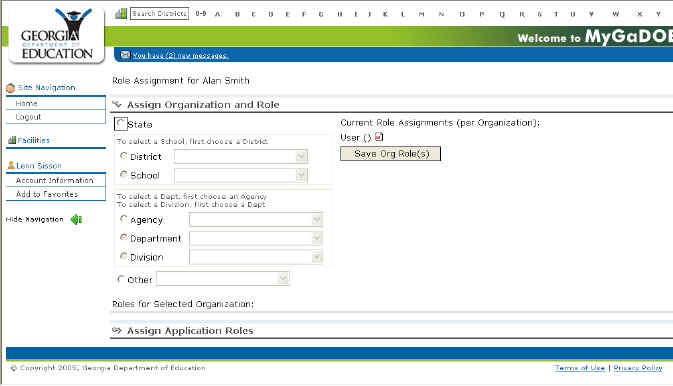

 ) located next to the role.