Click on
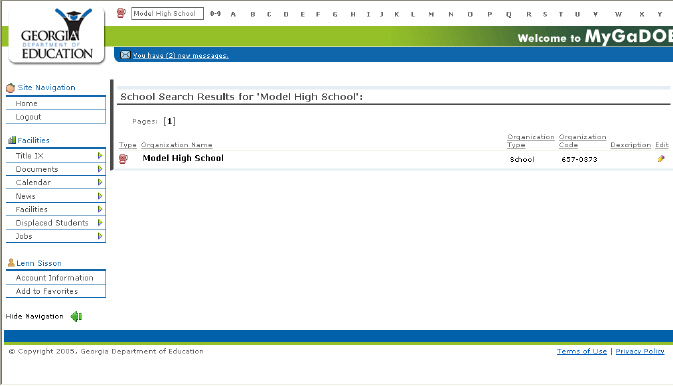
the Edit icon ( ) for the record on the list. For
example, the Edit icon appears at the end of the listing for the Model
High School record, shown below. To
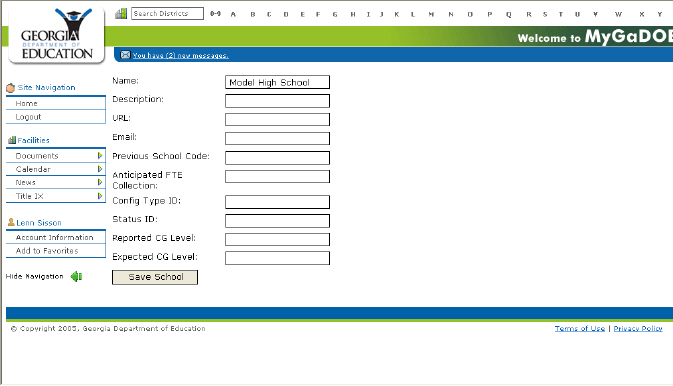
edit the record for this school, click on the edit icon at the end of
listed record.
) for the record on the list. For
example, the Edit icon appears at the end of the listing for the Model
High School record, shown below. To
edit the record for this school, click on the edit icon at the end of
listed record.