|
MyGaDOE |
Version 1.0 |
Regardless of their stage of completion, surveys can be saved and completed at a later time (See Step 4 of Answering a Survey). To access a saved survey, complete the following steps:
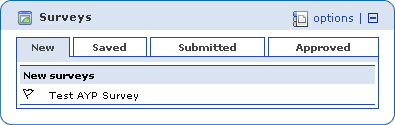
From your MyGaDOE Home page, locate the Survey portlet, an example of which is shown below.
An example of the Surveys portlet, showing one available survey in the New tab
Click the Saved tab. The Saved tab displays, similar to the one shown below.
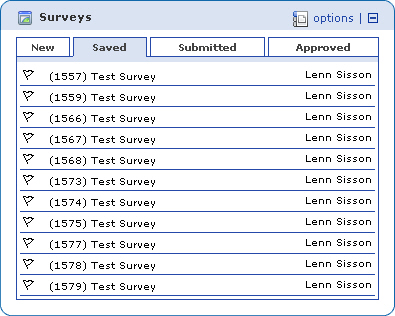
An example of the Saved tab in the Survey portlet
Click the survey you want to continue working on. The start page for that survey displays, similar to the one shown in the example below.

An example of a Start page, which displays after you click a survey in the Saved tab
Either click edit and work your way through the survey by clicking the next icon () until you reach the place where you left off, or click the page you want to start on in the pages list. In the example above, a user probably would start on "Page 1 - Types of Tests", since there remains one question there that needs to be answered (as noted under the "Required questions" list, "5 of 6 answered".
Work your way through the survey either until it is completed or you want to save your work and continue later. For more information about answering a survey, see the "Answering a Survey" help topic.
This completes the Accessing a Saved Survey process.