|
MyGaDOE |
Version 1.0 |
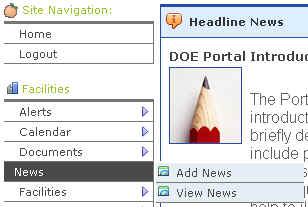
If you are authorized to add news items, you will see the Add news option in the News hover menu A menu where placing the cursor over a menu item but not clicking it (literally hovering over it) causes the menu options to display. along the Navigation menu. If not, you will only see the View News option, and will not be able to add or modify a news item.
The News Hover menu, showing both Add News and View News options
To add a News item, complete the following steps:
From your MyGaDOE Home page, place your cursor over the News option. The News Hover menu displays, as shown in the image above.
Select the Add News option. The Add News page displays, as shown below.
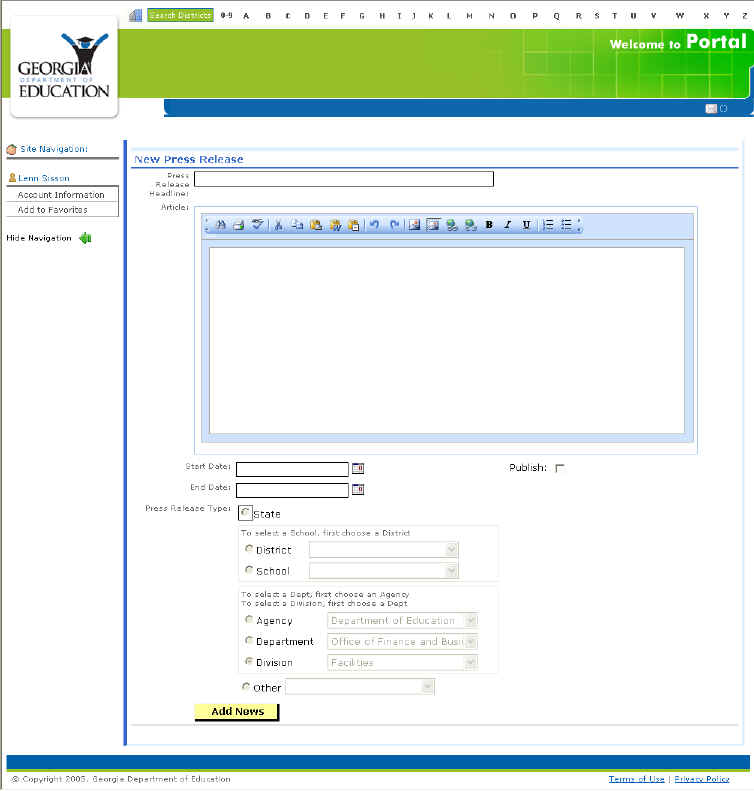
The Add News page as it first displays
Enter the information for each field as appropriate.
When finished entering the appropriate information, click the Add News button. The news item is added to MyGaDOE.
This completes the Add News process.
For more information about publishing news items and displaying them, please see the Display and Publish News Items documentation topic.