Search MyGaDOE Database

To search MyGaDOE for specific information, complete the following steps:

  1. From any page in MyGaDOE, hover your mouse over the Search Type icon.  This icon will vary based on the type of search chosen.  When the page first displays it defaults to the district search option ( Search Type Icon ).  In any event, the icon is located just to the left of the Search text box (Search Text Box).  The Search dropdown menu displays, as shown below.
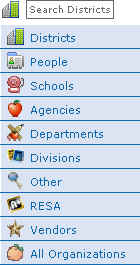
Search Menu

The Search dropdown menu displays when you click the Search icon

  1. Click the type of search you want to perform.  The Search menu resets to perform that type of search, as shown below.

Search bar reset for people search

The Search menu resets to search for people instead of districts - note how the icon has changed from the District search icon to the people search icon

  1. Click inside the Search text box to place your cursor there.

  2. Enter the name of the district, person, school, etc. you want to find.

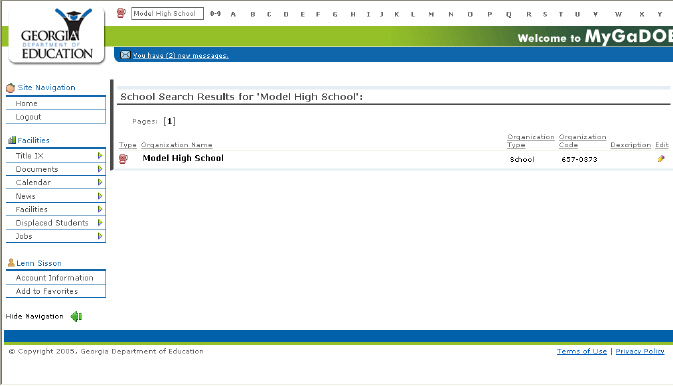
  3. Press the Enter button (Return on Macintosh computers).  MyGaDOE searches its database and displays the Search Results page, as shown below.

The search results page

The Search Results page

  1. To view information for a specific result, click the Name field for that result.  The View Record page displays for that result.

  2. To edit the information for a specific result, click the Edit field at the end of the result line.


For more information about viewing search result records, please see the View Search Result Records documentation topic.  For more information about editing search result records, please see the Edit Search Result Records documentation topic.